Google Pixel March 2025 Update: Display Brightness Issues & Fixes
Google Pixel March 2025 Update: Display Brightness Issues Reported Google Pixel Update Causing Screen Brightness Problems Some Google Pixel phone owners are seeing unexpected screen behavior after installing the March 2025 update. The main issue reported is related to the display brightness, with users noting it doesn’t adjust properly or is dimmer than expected. What’s […]

Google Pixel Update Causing Screen Brightness Problems
Some Google Pixel phone owners are seeing unexpected screen behavior after installing the March 2025 update. The main issue reported is related to the display brightness, with users noting it doesn’t adjust properly or is dimmer than expected.
What’s Happening?
The March update was meant to improve performance and fix bugs. However, it seems to have introduced a new problem for some. Users are saying their Pixel phone’s screen is either too dim, even at maximum brightness, or that the automatic brightness feature isn’t working correctly. This means the screen might not adjust to changing light conditions as it should.
Which Pixel Phones Are Affected?
Reports indicate that the following Pixel phone models are experiencing this problem:
- Pixel 7
- Pixel 7 Pro
- Pixel 7a
- Pixel 8
- Pixel 8 Pro
It’s important to note that not everyone with these phones is affected. The issue seems to be impacting a subset of users, making it difficult to pinpoint the exact cause.
Troubleshooting Steps: What You Can Try
If you’re experiencing this brightness issue, here are a few things you can try to fix it:
Restart Your Pixel Phone
This is always a good first step. Restarting your phone can often resolve temporary software glitches.
Check Your Brightness Settings
Make sure your brightness isn’t accidentally set too low. Also, ensure that adaptive brightness is turned on (or off, then on again) to see if it resets the feature.
- Go to Settings.
- Tap on Display.
- Select Brightness Level.
- Adjust the slider and toggle Adaptive Brightness.
Clear Cache Partition
Sometimes, old cached data can cause issues. Clearing the cache partition might help resolve the brightness problem.
- Turn off your Pixel.
- Press and hold the Power and Volume Down buttons simultaneously.
- Use the Volume buttons to navigate to “Recovery Mode” and press the Power button to select.
- If you see “No Command,” press and hold the Power button, then press and release the Volume Up button once.
- Use the Volume buttons to navigate to “Wipe Cache Partition” and press the Power button to select.
- Select “Yes” to confirm.
- Once complete, select “Reboot System Now.”
Check for App Conflicts
A recently installed or updated app could be interfering with the display settings. Try uninstalling any apps you installed shortly before the problem started.
Safe Mode
Booting your phone into safe mode will load the operating system without any third-party applications. This can help you identify whether an app is the cause of the problem. If the brightness issue disappears in safe mode, a third-party app is likely the culprit. To boot into Safe Mode:
- Press and hold the power button.
- Tap and hold the power off option.
- Tap OK to reboot into safe mode.
Factory Reset (Last Resort)
If none of the above steps work, you can try a factory reset. This will erase all data on your phone, so be sure to back up anything important first. A factory reset restores your phone to its original state, which can eliminate software problems. To perform a factory reset:
- Go to Settings.
- Tap on System.
- Select Reset Options.
- Choose Erase All Data (Factory Reset).
Warning: This will delete all data on your phone. Make sure to back up important data before proceeding.
Google’s Response
As of now, Google hasn’t officially acknowledged the brightness issue. However, users are reporting the problem on Google’s support forums and social media. Hopefully, Google will release a fix in a future update soon.
Stay Updated
Keep an eye on official Google channels and tech news sites for updates on this issue. A software update is the most likely solution, so make sure your Pixel phone is set to automatically install updates.
Common Questions About Pixel Updates
How do I check for updates on my Pixel phone?
Go to Settings > System > System Update. Your phone will check for available updates.
How long do Pixel phones get software updates?
Google typically provides several years of software and security updates for its Pixel phones. The exact number of years varies by model.
What if the problem persists?
If you’ve tried all the troubleshooting steps and the brightness issue continues, contact Google support for further assistance. They may be able to offer more specific guidance or arrange for a repair if necessary.
Conclusion
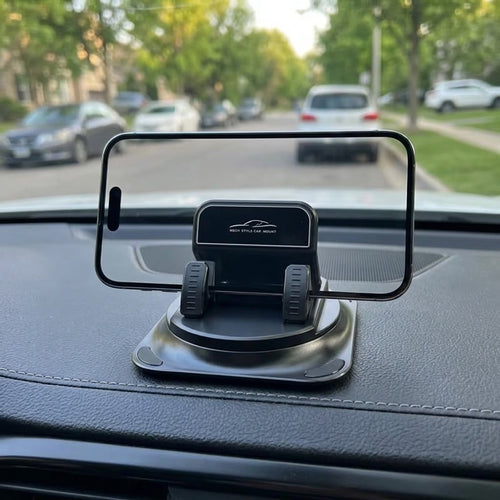
The March 2025 Google Pixel update appears to have introduced a display brightness bug for some users. While a software fix from Google is the best long-term solution, the troubleshooting steps outlined above might help alleviate the problem in the meantime. Be sure to stay informed about further developments and updates. For those looking to enhance their Pixel experience, exploring accessories like phone mounts or wireless chargers can be beneficial. You can find a diverse range of options at a site like Mavigadget’s phone mount collection, which may improve your phone’s functionality and convenience.
“`
Filed under
Written by
Cloe
Tech & Gadgets, MaviGadget
Cloe writes for the MaviGadget Journal, testing the gadgets that promise to change your day and reporting honestly on the ones that actually do.